
101 lines
8.4 KiB
Markdown
101 lines
8.4 KiB
Markdown
---
|
||
page-title: "Automatic Backups for WSL2 – Stephen's Thoughts"
|
||
url: https://stephenreescarter.net/automatic-backups-for-wsl2/
|
||
date: "2023-03-13 15:12:29"
|
||
---
|
||
[Windows Subsystem for Linux](https://docs.microsoft.com/en-us/windows/wsl) (WSL) is pure awesome, and [WSL2](https://docs.microsoft.com/en-us/windows/wsl/wsl2-index) is even more awesome. (If you’ve never heard of it before, it’s Linux running inside Windows 10 – not as a virtual machine or emulator, but as a fully supported environment that shares the machine.) I’ve been testing WSL2 for a few months now as my local development environment. The performance benefits alone make it worth it. However, there is one problem with WSL2: **there isn’t a trivial way to do automatic backups.**
|
||
|
||
In this tutorial, I will explain the difference between WSL1 and WSL2, and how you can set up automatic backups of WSL2. This is the setup I use to backup all of my WSL2 instances, and it integrates nicely with an offsite backup tool like Backblaze, to ensure I never lose an important file.
|
||
|
||
## The Difference Between WSL1 and WSL2
|
||
|
||
Under WSL1, the Linux filesystem is stored as plain files within the Windows 10 filesystem. As an example, this is the path for my Pengwin WSL1 filesystem:
|
||
|
||
Inside that directly you’ll find the usual Linux directories, such as `etc`, `home`, `root`, etc. This makes backing up WSL2 trivial. Your existing backup program can read the files in this directory and back them up when they change. It’s super simple and *just works*.
|
||
|
||
*Important: **Do not modify the files in this directory, ever.** This can corrupt your WSL1 instance and lose your files. If you need to restore files from your backup, restore into a separate directory and manually restore back into WSL1 via other methods.*
|
||
|
||
However, under WSL2 the Linux filesystem is wrapped up in a virtual hard disk (`VHDX`) file:
|
||
|
||
Using a virtual hard disk in this way greatly enhances the file IO performance of WSL2, but it does mean you cannot access the files directly. Instead you have a single file, and in the case of my Pengwin install, it’s over 15GB! ([If you’re not careful, it’ll grow huge](https://stephenreescarter.net/how-to-shrink-a-wsl2-virtual-disk/)!)
|
||
|
||
As such, unlike the trivial backups we get for WSL1, we cannot use the same trick for WSL2. Many backup tools explicitly ignore virtual disk files, and those that do try to back it up will have trouble tracking changes. It may also be in a locked/changing state when a backup snapshot tries to read it… ultimately, it’s just not going to end well.
|
||
|
||
## My WSL2 Backup Solution
|
||
|
||
My first idea for backing up WSL2 was to `rsync` my home directory onto Windows. It turns out this approach works really well!
|
||
|
||
I use a command like this:
|
||
|
||
The above command is wrapped this inside `~/backup.sh`, which makes it easy to call on demand – without needing to get the parameters and paths right each time. Additionally, I added some database backup logic, since I want my development databases backed up too. You’ll find my full `~/backup.sh` script (with other features) at the end of this post.
|
||
|
||
This method works incredibly well for getting the files into Windows where my backup program can see them and back them up properly. **However, it is also a manual process.**
|
||
|
||
Some users have suggested using cron within WSL2 to trigger periodic backups, however the cron still relies on WSL2 to be running. As a result, you’ll only have backups if your WSL2 is up when your backup schedule is configured to run. That means cron isn’t the most reliable solution. As an aside, I have also seen reports that cron doesn’t always run in WSL. Note, I haven’t tested this myself, so I don’t know the details (i.e. use at your own risk).
|
||
|
||
## Automating WSL2 Backups
|
||
|
||
After some creative searching, I discovered the **Windows Task Scheduler**. It’s the equivalent to *cron/crontab* on Linux, and allows you to schedule tasks under Windows. I had no idea such a thing existed, although, in hindsight, it seems pretty logical that it would. Using the *Task Scheduler*, we can set up automatic backups for WSL2.
|
||
|
||
You can find it by searching for *Task Scheduler* in the start menu, or by looking in the *Windows Administrative Tools* folder.
|
||
|
||
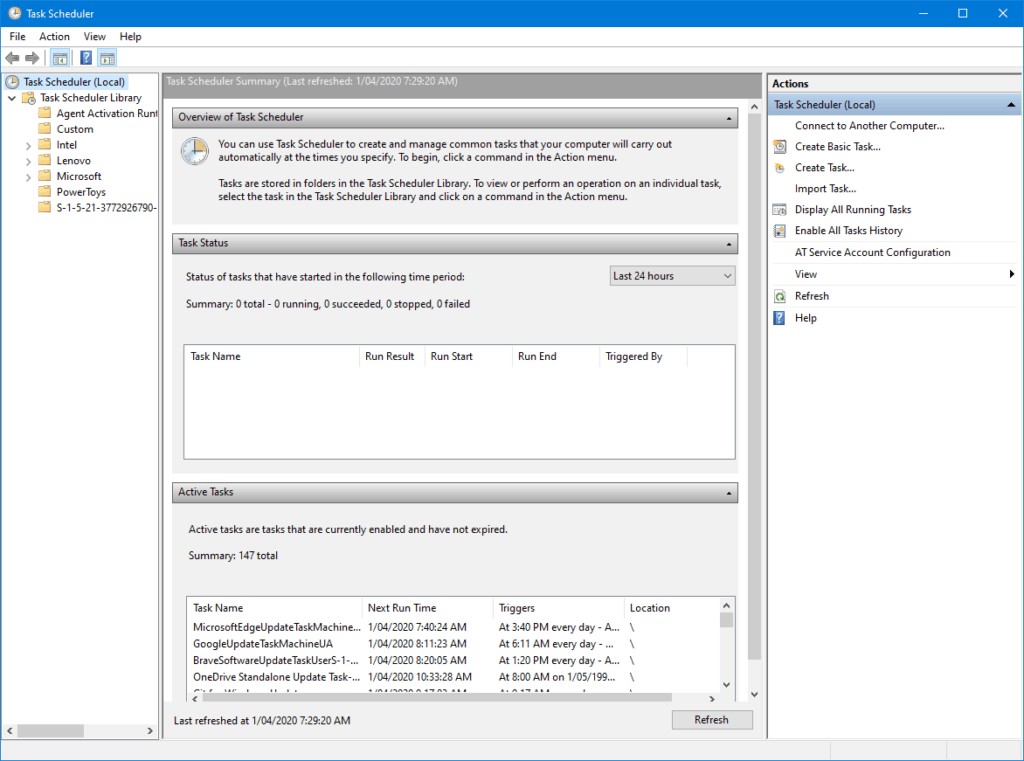
Once it opens, you’ll see something that looks like this:
|
||
|
||
|
||
|
||
Windows Task Scheduler
|
||
|
||
With the Task Scheduler, we can tie our manual `rsync` based backup up to a schedule.
|
||
|
||
To set up our automated backup, I’d recommend first going into the *Custom* folder in the left folder pane. It’ll keep your tasks organised and separate from the system tasks. From there you can select *Create Task…* in the actions list on the right.
|
||
|
||
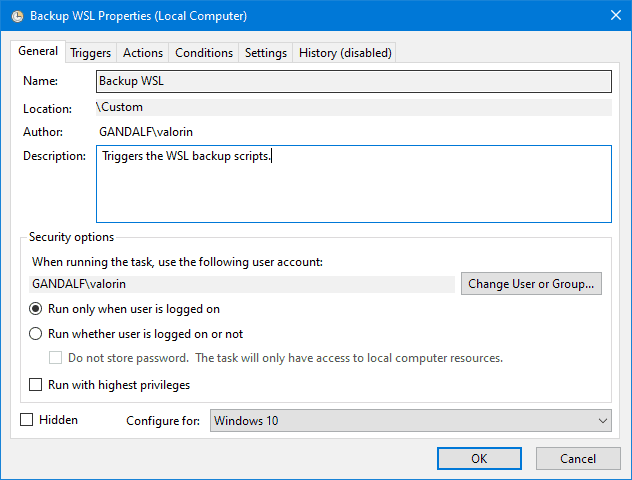
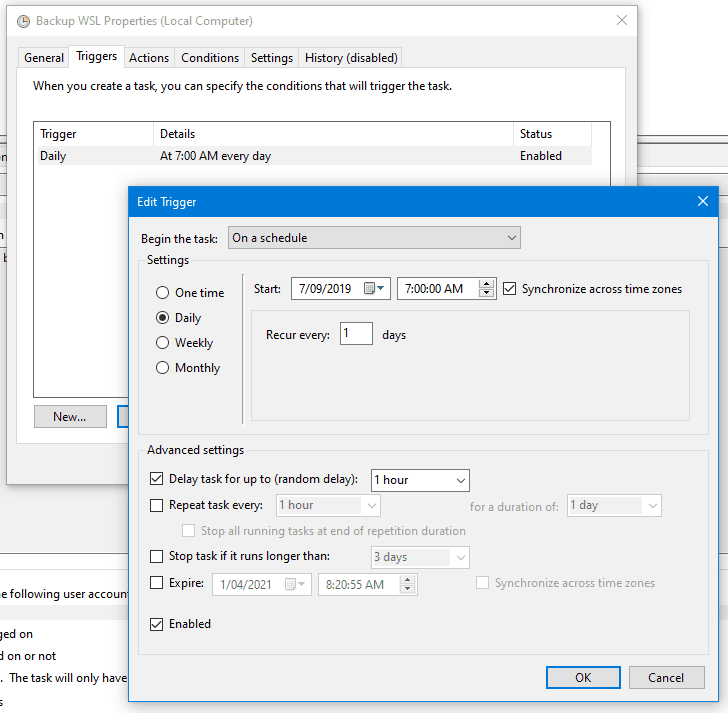
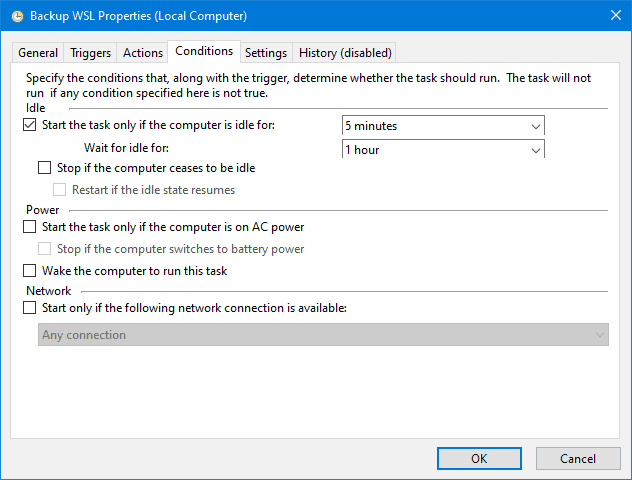
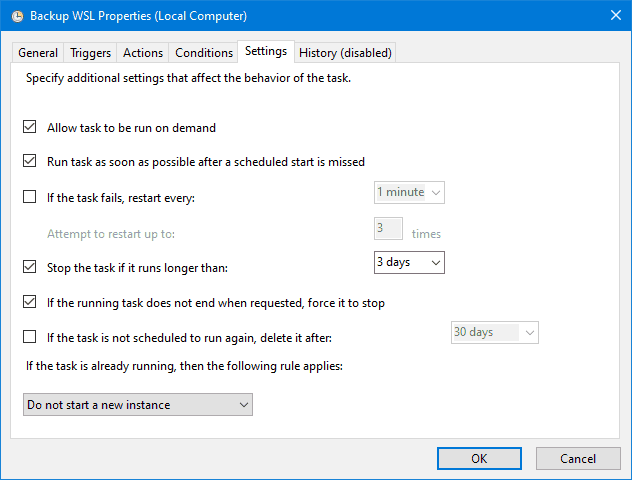
The following screenshots show the configuration I use for my backups, customise as suits your needs. I’ll point out the settings that are important to get it working.
|
||
|
||
|
||
|
||
Set *Configure For* to: `Windows 10`
|
||
|
||
|
||
|
||
Click `New` to create a new trigger, which will launch the backup. I have mine configured to run *daily* on a *schedule*, starting at at *random time* between *7am and 8am*. Don’t forget to check *Enabled* is ticked.
|
||
|
||
|
||
|
||
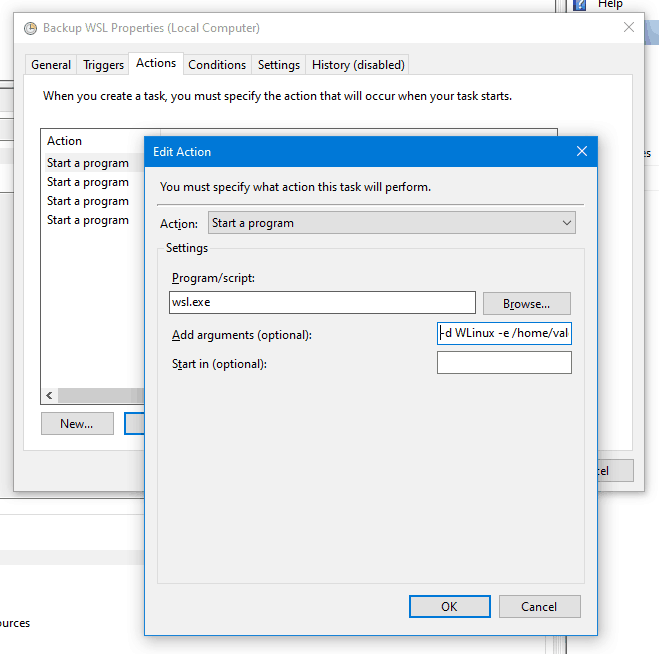
Click `New` to create a new action, which is how the backup script is executed.
|
||
|
||
Set *Program/script* to `wsl.exe`
|
||
Set *Add arguments* to `-d WLinux -e /home/valorin/backup.sh`
|
||
|
||
This executes WSL with the distribution `WLinux` (Pengwin), executing the script `/home/valorin/backup.sh`.
|
||
|
||
|
||
|
||
You can control the special conditions when the backup script runs in this tab. Mine waits for the computer to be idle, but it is a laptop and the backup can sometimes slow everything down if there are some large files being backed up.
|
||
|
||
|
||
|
||
You can configure the settings however suits you best.
|
||
|
||
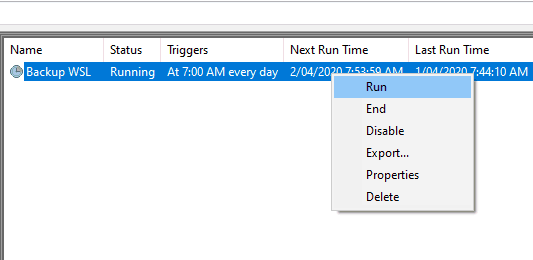
That’s it, you now have automatic backups of WSL2. With the task fully configured, you should be able to wait for the schedule to run at the configured time. You can also right click on the task in the list and select `Run` to manually trigger the backup to check it works.
|
||
|
||
|
||
|
||
## Backing Up MySQL/MariaDB
|
||
|
||
If you have any databases (such as MySQL/MariaDB), you’ll probably want to keep a backup of that data as well. While you could get `rsync` to include the raw database files, that can easily result in corrupted data. So the alternative is to use a tool like `mysqldump` to dump the database data into a file. Once it’s in a file, you can easily include this in the `rsync` backup.
|
||
|
||
For my daily backups, I use `mysqldump` to dump all of my current databases into their own files within my home directory. These files are then backed up by `rsync`into Windows alongside everything else. I’ve wrapped all of this up inside `~/backup.sh` , which I keep synchronised between my WSL2 instances.
|
||
|
||
## My `~/backup.sh` Script
|
||
|
||
This is the current version of my `~/backup.sh` script. It includes `mysqldump` for my development databases and `rsync` for my files. Since I use it across all my WSL instances, it uses the `WSL_DISTRO_NAME` environment variable to work across all of my WSL instances automatically.
|
||
|
||
*Note, you’ll need to allow `sudo mysql` to work without a password to automate the script.*
|
||
|
||
## Summary
|
||
|
||
I’ve been using this backup method of automatic backups for WSL2 since I migrated over from WSL1 last year. It works really well with my workflow, and I usually don’t notice the backup window popping up every morning. It’s simple and minimal fuss, and doesn’t require any system changes to WSL2.
|
||
|
||
If you do any work or keep any important files within your WSL2, you’ll want to ensure it’s backed up. Coupled with Backblaze, I have WSL2 backed up locally and online, keeping my dev work safe.
|
||
|
||
I hope this has been helpful – please reach out if you have any questions about my approach. If you have a different approach to backing up WSL2, please share – I’d love to see how you solve it. |